← avionvera.com · This is the manual that ships inside the app (Help ▸ User Manual…).
Avionvera — User Manual (beta)
Avionvera is a decision-support tool for reviewing your own flight recordings. It is not an aircraft manual, a maintenance authorization, a substitute for the approved flight manual, or a replacement for your own judgement or your mechanic's. Everything it shows is a reading of what your recorder measured and what you have told it.
1. What Avionvera is, and is not
It is:
- A local reviewer for engine-monitor and GPS recordings from your aircraft.
- A way to see each flight's phases, engine data and findings side by side, and how measurements move from flight to flight.
- A place to keep your own maintenance facts — completions, meter readings, squawks — next to the recordings that relate to them.
It is not:
- A determination of airworthiness, compliance or maintenance status. Nothing on any screen is a regulatory, maintenance or airworthiness determination. The logbook and your mechanic remain the authority.
- A cloud service. There is no account and no sync, and nothing is uploaded on its own.
- Finished. This is a beta: expect rough edges, and tell us about them (section 10).
Where scores are available. Numeric engine and technique scores are currently available only for:
1989–2015 PA-46-350P Malibu Mirage with a JPI EDM-930
Any other aircraft, engine monitor or combination can import recordings and show what was measured, but it does not get a numeric score, and nothing it shows should be read as a score. See section 7.
2. Privacy and your data
- Recordings stay on your Mac. Your archive is a local database in your Library folder. Nothing is sent anywhere on its own.
- Importing never changes your files, and keeps a copy of each. The app reads a file, leaves it where it is, and saves an exact copy of every recording it recognises in its own source folder beside the archive (File ▸ Advanced ▸ Show Saved Source Files). Nothing is moved, renamed or deleted. Those copies go into every backup, and File ▸ Advanced ▸ Reimport Saved Source Files… rebuilds recordings from them if a flight is ever lost.
- Testing feedback is a text you read first. Testing Feedback… shows a short report. Copy to clipboard puts it on the clipboard and nowhere else, for you to paste. Send to support… opens a second sheet that shows the same report again, names the service, and sends it only when you press Send to support there.
- What the feedback text holds. It contains the app and macOS version, the aircraft registration and name you entered, the confirmed aircraft configuration and support status (when present), and the read-only archive diagnostics (counts, versions, data-health checks). It contains no raw recordings or files, no flight samples or tracks, no maintenance records, meter readings or squawks, and no credentials. The app never sends it on its own.
- Four features send anything, each only when you ask. Ask AI sends a bounded summary of the app's own analysis for the flight or archive you are looking at — never recorder files, position tracks or the database — and you are shown what will be sent before it goes; it cannot change a score, rule, squawk or record.
- Reading logbook pages. Read Logbook Pages… sends the page images you chose and the transcription prompt, using the key you entered in Settings ▸ Assistant, only after you start it on screen. The owner-records workbook path sends nothing from this app. For Ask AI and logbook reading alike, response storage is turned off for the request; OpenAI's own data-use and retention policies still apply to what is sent — review them and your account's settings before sending anything private. See section 8.
- Sending a file for support. Send this file for support…, offered beside an import result the app could not read, sends that one recording file, exactly as it is on disk, to Avionvera support — and only after you have reviewed what will go and pressed Upload to support on that sheet. See section 9.
- Pilot context notes stay private. A note you write on a flight (section 7) is kept in this archive, carried in your backups, and shown on that flight only. It is never in a report, the feedback text or an Ask AI question, and it never changes a score.
- Identity is yours to enter. A new archive is anonymous: reports and feedback say "Aircraft not yet named" until you type a registration in Settings ▸ Aircraft. The app never takes an identity, an aircraft type or a configuration from your files.
3. Before you begin
- macOS beta. Follow the installation instructions supplied with the beta build. A beta may have bugs — keep your original recorder files and make backups (below).
- One archive is one aircraft. Avionvera keeps a single archive on this Mac. Do not import recordings from a second aircraft into it.
- Keep your recorder files. The app reads them; it does not become the copy of record.
- Make a backup once you have something worth keeping. File ▸ Back Up Record… writes one zip file wherever you choose (section 8).
- An OpenAI key is optional. Only Read Logbook Pages… and Ask AI need one. The steps to create it are under Your OpenAI key in section 8.
4. First-run checklist
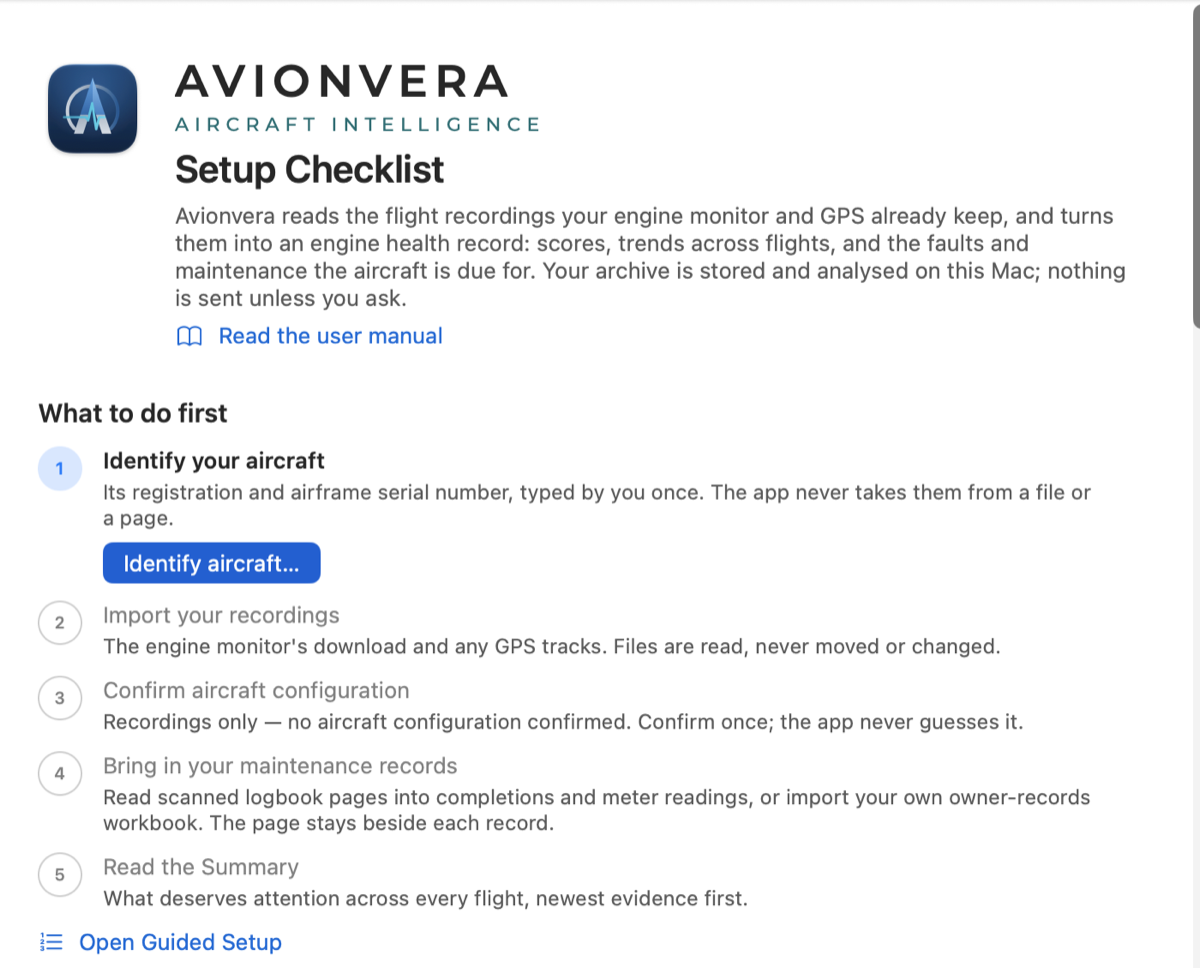
The Setup Checklist (shown on an empty archive, and any time from the location bar's Setup Checklist button or Help ▸ Setup Checklist…) lists these steps and marks the next one.
- Identify your aircraft. Press Identify aircraft… in the checklist and type its registration; the airframe serial number is optional. The app keeps this with your records and checks every logbook page it reads against it; it never takes either from a file or a page. You can change it later in Settings ▸ Aircraft. This is not the scoring configuration — that is step 3.
- Import your recordings. File ▸ Import ▸ Flight Data… (⌘I), or drag files or folders onto the window. Section 5.
- Confirm aircraft configuration. Avionvera ▸ Confirm Aircraft Configuration… You state the aircraft, its recorders and its channels yourself. The app never infers the configuration from a data file, a serial number, a registration or the samples. Section 6. After you confirm, the Setup Checklist comes back with Rescore your flights as its next step (without the checklist open, a banner reads Scores are out of date). Press Rescore…; nothing is rewritten until you press Rescore now. Rescoring recomputes derived analysis only; your recordings and maintenance entries are untouched.
- Bring in your maintenance records. Read scanned logbook pages into completions and meter readings, or import your own owner-records workbook. The page stays beside each record. Section 8, Read logbook pages and Owner records in bulk.
- Read the Summary. The landing page (Flights ▸ Overview, ⌘1): what deserves attention across every flight, newest evidence first. Section 7.
Getting Started
On a new record — the first start from TestFlight or the App Store, or a brand-new installation of the download — a Getting Started window opens beside the app (below it on a small screen). It walks a first sitting on sample files that ship inside the app: three generated EDM-930 flights and a two-page fictional engine log for the invented aircraft N000AV.
Its first step, Save sample files…, writes them into a folder you choose. The other steps name the exact buttons to press, and each ticks itself off from what the record holds: identifying the sample airplane, confirming its configuration, the import, the watched folder, the configuration filled from the recordings, finishing the assistant, a first look around, then your OpenAI key (see Your OpenAI key under section 8) a reading of the sample engine log, and its review — page by page, with the page's picture beside the records read from it. Those last three can be skipped; the sample log needs no key (see below).
Tours. Under Help ▸ Tours: Help ▸ Tours ▸ Tour: Overview…, Tour: A Flight…, Tour: Import History…, Tour: Trends…, Tour: Records…, Tour: Due Items… and Tour: Problems… go over one part of the app in the same window, on your own record — empty or full. A tour changes nothing: its Go to … button moves the main window only when you press it, and the flight tour goes over the flight you chose, never one it picks. Every guide in that window starts with a line saying where you are, or what is open over the main window and how to close it.
The demo record. Help ▸ Try the Demo… sets your record aside — not deleted, with a complete backup written first and the file named on the confirmation — and a made-up airplane, N000AV, opens in its place with 18 flights, a maintenance ledger read from a fictional engine log, two problem reports and two stored example answers. The demo cannot be changed: anything that would import, edit, send or back up is refused, and every refusal offers Start with my airplane…. While it is open the window title reads Avionvera — DEMO, the location bar carries a DEMO · example data capsule, every report page ends with "Example data from the Avionvera demo record — not a real aircraft", and due states are judged as of the demo's own example date rather than today. Its first open shows the Demo Tour in the Getting Started window — every part of the app in five chapters, each page either live in the demo or a result the demo already holds — and Help ▸ Demo Tour… brings it back at the page you left. Two ways out: Start with my airplane… (the location bar, every refusal, the tour's last page) sets the demo aside and opens an empty record for your airplane, Getting Started following; or File ▸ Restore Record from Backup…, which lists your own record's backup first and brings it back exactly as it was. The demo itself is never backed up and never listed: nothing of yours is in it.
Help ▸ Getting Started Tutorial… brings the window back any time, placed beside the app like the automatic open. An unfinished walkthrough comes back by itself at the next launch until you finish it or close it with its own Close button.
When you are done, Start over… — the window's button, or Help ▸ Start Over… while the record holds nothing but the sample files — sets the sample record aside and begins a record for your own airplane; Getting Started then opens again on the new record with five steps for your own airplane: identify it, import your recordings, confirm its configuration, look around, then bring in your logbooks (skip that one if you have no key and no workbook yet). A complete backup is written first, nothing is deleted, and the old record is listed under Previous records. A record that holds only the sample files goes straight from the walkthrough's own confirmation to the result; the watched folder, the setup purpose and the startup choice from the sample sitting are forgotten with it. A record restored from a backup never opens the walkthrough.
Guided Setup
The same path, one screen at a time: Help ▸ Guided Setup…, or the link under the Setup Checklist's steps. On a brand-new installation it opens by itself the first time the app starts. On an archive that already holds flights, records or a confirmed configuration it does not, and nothing about an upgrade changes that.
The checkbox at its foot — Show Guided Setup when Avionvera starts — is the one setting. The last screen's Don't show this at startup again is the same setting, and the Help menu opens the assistant whatever it says.
Five screens:
- Your airplane — identity (registration and/or serial, as on the paperwork; no recordings needed) and, separately, the scoring configuration. Each shows what is already saved with a Change… button and is never filled in from a file.
- What you want to do — analyze flight recordings, organize maintenance records, or both. This shapes the guidance and where setup ends, never what you can open, and you can change it later. Choosing maintenance only means no step asks for flight recordings, a scoring configuration or a rescore.
- Add your data — the app's own import, logbook-reading and record-entry flows. Each opens on the main window and brings the assistant back when it finishes or is cancelled. The reading-pages route says what it costs and what leaves this Mac before you choose it; no key is needed for the others.
- Review what we found — counts from what is actually on file, imports that need attention, inferred completions you have not confirmed, and unfinished logbook readings (resumable work, not a failed setup). Nothing is confirmed, sent or rescored for you.
- Your starting point — the Summary, the Maintenance ledger, or the choice between them, with whatever you left for later named as not yet there.
Back goes back a screen and undoes nothing; Continue never confirms, imports or completes anything by itself; Finish setup later, Escape or closing the sheet leaves every saved fact saved and does not change the startup setting. The assistant reopens where you left it, as far as the archive's facts allow.
5. Import recordings
What the app reads today
| Recording | Files | Notes |
|---|---|---|
| JPI engine-monitor download | .JPI or .dat; an EZTrends .csv export of the same data also works | The raw file from the EDM-930's USB download. One file can hold many flights. |
| Garmin GTN FlightStream log | log_*.csv, or a .zip holding them | GPS track, fuel and airspeed from a GTN 750 (the tested unit; a GTN 650 writes the same logs). Attaches to the matching engine recording. G1000 and G3X logs import as GPS tracks for now; their engine channels are not read yet. |
| KML track | .kml | A GPS track exported from ForeFlight — the regular or the Full export; when the file carries them, bank, pitch, groundspeed and the recorded g-load (total load factor) are kept with the track. The only KML source tested so far; other apps' KML exports may work. |
| GPX track | .gpx | A GPS track from Garmin Pilot's logbook export — the tested source; other apps' GPX exports may work. GPX support is beta. |
Files dropped together are matched to each other, so drop a flight's engine file and its track in one go. A recording you import twice is recognised and not stored twice.
Nothing to import yet? Download the sample files: three generated EDM-930 flights and a two-page fictional engine log for an invented aircraft, with a README that says where each goes. Nothing in them is a real aircraft, owner or flight.
Every file the app recognises is also copied, byte for byte, into the archive's source folder before it is read, whatever the import then decides about its recordings — a duplicate today is a rebuild tomorrow. A file the app cannot copy is reported as not imported; a file it does not recognise is not kept.
Recordings imported before this version kept copies are not saved yet. Save copies of the files already here in Flights ▸ Watched Folder… (shown while watching is on) keeps them once, and Diagnostics lists any imported file that still has no saved copy as "source file not retained".
Getting the files off the airplane
The menu paths below were checked against the makers' documentation in October 2026: the EDM-930 Pilot's Guide rev. K, the GTN Xi Pilot's Guide rev. G, ForeFlight's support articles and Garmin's Garmin Pilot notes, and the GTN, Garmin Pilot (iOS) and EDM-930 steps were each confirmed by an owner on their own equipment in October 2026. Your software version may still differ; if a step does not match what you see, say so in your beta feedback.
JPI EDM-930 (USB port on the instrument) — EDM-930 Pilot's Guide rev. K, section 8
- Use an empty USB flash drive formatted FAT32, not exFAT or NTFS (JPI's download FAQ). A small, older USB 2 drive is the most reliable.
- With the EDM powered up, plug the drive fully into the USB port on the front of the instrument.
- Wait for the display to show DOWNLOAD: NEW.
- To download only what was recorded since the last download, tap STEP. To download everything in memory, tap CHANGE until it shows DOWNLOAD: ALL, then tap STEP. Neither erases anything.
- A progress indicator runs while the data is copied. Do not interrupt it. When it finishes the display shows DONE and returns to normal operation; only then remove the drive.
- The drive now holds one
.JPIfile that can span many flights. Drop it on Avionvera as it is; EZTrends is not needed.
Older EDM software and other JPI models prompt differently (PROGRAM, then DUMP NEW / DUMP ALL chosen with LeanFind, per JPI's download FAQ); the rule is the same — wait for DONE before pulling the drive. With JPI's external USB download box the file is named U000000.JPI.
Garmin GTN Xi, and GTN 650/750 (card in the unit) — GTN Xi Pilot's Guide rev. G, "Exporting Data Logs to an SD Card"
The GTN records a flight data log to its own memory whenever it is powered. The steps are the Xi guide's and match an original GTN 750 on current software (owner-confirmed, October 2026). To get the files:
- On the ground, power the unit off, insert an SD card (32 GB or smaller, FAT32) and power it back on.
- Tap Home ▸ Utilities ▸ Logs ▸ Flight Data Log. The key greys out while the export runs; wait until it is available again before ejecting the card. A long export may need ground power or the engine running.
- On your Mac the card's
logsfolder holds files namedlog_YYMMDD_HHMMSS_WPT.csv. Drop the folder on Avionvera, or copy it into your watched folder. A log recorded before the unit had a valid clock cannot be dated, so it is not stored as a flight (its row reads nothing usable inside); Avionvera decides that from the timestamps inside the file, not from its name (such files often carry a 2000 or 2005 date in the name, likelog_000101_…).
With a Flight Stream 510 fitted, the same logs also stream to Garmin Pilot and on to flyGarmin.com. flyGarmin's Download Log bundle is encrypted by Garmin and cannot be opened by Avionvera, or by you; use the card's loose log_*.csv files instead.
Garmin G1000, G1000 NXi, G3X
- G1000 / NXi: when flight data logging is enabled in your software (the AUX ▸ Utility page shows a Flight Data Logger field), the MFD writes one
log_YYMMDD_HHMMSS_WPT.csvper power-up into adata_logfolder on the SD card in its top slot. Pull the card after shutdown. If the field is missing, ask your avionics shop whether your software version logs. - G3X Touch: with an SD card in the PFD during flight, the display writes the same kind of
log_*.csvfiles intodata_logon the card. The internal log can also be copied out: with power off, hold Menu while powering up, then Data Log ▸ Internal Data Log ▸ Copy To SD Card (those files land infdr_log).
Today these import as GPS tracks only; their engine channels are not read yet. Avionvera has not yet seen a real G3X file at all. If you fly behind one of these, your logs are exactly what is needed: tell us when you join the beta.
ForeFlight (KML)
- iPad or iPhone: More ▸ Track Logs, pick the flight, then Send To. Mail the KML to yourself, or Open KML in… and save it to Files or AirDrop it to your Mac.
- ForeFlight Web (plan.foreflight.com): Track Logs, select the flight, then Download (on some screens More options ⋯ ▸ Download) and choose KML (Full). Full keeps every recorded point; KML (Filtered) reduces the sampling for Google Earth. Whether bank, pitch, groundspeed and g-load are present depends on the recording and the export, not on this choice alone — both kinds have carried them.
Garmin Pilot (GPX, beta)
More ▸ Logbook ▸ Entries, open the flight, tap the share icon and choose the track as GPX, then send it to your Mac by AirDrop, Mail or Files. On Android the share sheet shows a Track (GPX File Format) checkbox.
Getting files to your Mac. AirDrop, the Files app with iCloud Drive, or mailing the file to yourself all work. A card reader is the fastest for SD cards and JPI drives. Whatever lands in your watched folder is offered automatically.
Three ways in
- File ▸ Import ▸ Flight Data… (⌘I) — choose files or whole folders.
- Drag and drop — files or folders onto the window. One drop is one batch.
- Watched folder — Flights ▸ Watched Folder… turns on a folder the app checks on its own. Copy your SD card's contents into it; a tray appears at the top of the window with a countdown and the outcome it expects. Import now (Return) imports at once; Cancel (Escape) leaves the files where they are. Files stay where you put them; nothing is moved or deleted.
The app remembers which files it has already handled, so an unchanged file is not offered again. Re-check folder now in Flights ▸ Watched Folder… forgets that memory and offers every file again: recordings already in your archive are recognised and skipped, and a flight you deleted is rebuilt from its file.
What the outcomes mean
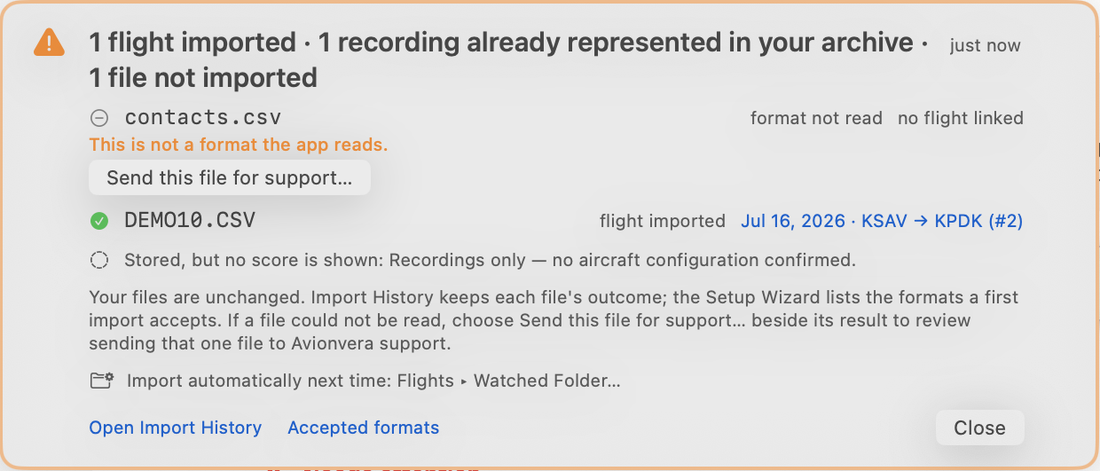
After every import a banner names each file and what became of it. Flights ▸ Import History keeps the same rows permanently, with a search box and a filter for imports that needed attention.
| The row says | What happened | What to do |
|---|---|---|
| flight imported | A new flight was stored. | Open it from the link on the row. |
| joined an existing flight | Engine data joined a track that was already on file (or the reverse). They are now one flight. | Nothing. |
| track attached | A GPS track was added to a flight already on file. | Nothing. |
| replaced a partial copy | A fuller download of the same session replaced a shorter one. | Nothing was lost. |
| already in your archive | This recording is the flight named on the row. | Nothing — importing twice never stores twice. |
| already represented in this import | Another file in the same batch held this recording (consecutive JPI downloads overlap); the row names the flight that file became. | Nothing. |
| track already attached | That track was already on that flight. | Nothing. |
| nothing usable inside | The file was read but held no flight (for example a track whose clock never set). | Nothing was stored; the file is unchanged. |
| format not read | Not a format the app reads. | Check the table above. The file is unchanged. If it is a recorder's file, Send this file for support… beside the row offers to send it for investigation. |
| file damaged | Too many rows were unreadable — usually a copy made by another app. | Import the recorder's own log or export instead, or send this one with Send this file for support…. |
| encrypted bundle | A Garmin-encrypted log bundle (flyGarmin's Download Log); its files cannot be opened. | Import the loose log_*.csv files from the card instead. |
| no usable rows | The file was read but every row was empty or unusable. | If the recorder wrote a fuller file for the same flight, import that one. |
| recognised, not decoded | The app recognised the file and read its header, which lists flights, but could not decode any of them — often a recorder model or firmware the app has not met. | Send this file for support… beside the row reviews sending that one file so the format can be investigated. Nothing was stored; the file is unchanged. |
| could not be imported | Something else went wrong. | Import History shows the app's own words under the row; Send this file for support… beside it, or report it (section 10). |
Import cancelled. When you cancel a watched-folder import the banner says so: the files are unchanged and are offered again when they change, or when you press Re-check folder now in Flights ▸ Watched Folder…; File ▸ Import ▸ Flight Data… takes them any time. Files that are not a recording type, and GTN system reports, are named as skipped on the banner and never reach Import History.
Imported is not scored. When the archive's configuration does not allow a numeric score (section 7), the import banner adds Stored, but no score is shown. The flight is on file and can be read; it simply has no number.
6. Configure your aircraft and equipment
Avionvera ▸ Confirm Aircraft Configuration… (also from the card at the top of the Summary, and from Settings ▸ Aircraft).
Why it is your act. The app never guesses the aircraft, its configuration or its equipment from files, serial number, registration or recordings. You state it once, and you can change it later. The statement is what turns numeric scoring on for the one configuration that has it; without it the app shows recordings only.
The sheet, top to bottom:
- Aircraft — pick your configuration from the list. The Malibu Mirage (1989–2015) and the M350 are separate rows even though they share a type certificate; only the Mirage row is marked validated with the EDM-930.
- Fill from my recordings — switches on the recorders and channels your imported recordings have carried so far. A suggestion for you to check, not a fact: it adds to what you have set and never clears anything, and pressing it saves nothing. Until a recording is on file the button is greyed and the row says so; set the recorders and channels by hand, or come back after an import.
- Recorders installed — switch on each recorder you actually have. Only recorders the app can read are listed.
- Channels — for each channel, installed, not installed or unknown. Unknown stays unknown: a channel you have not declared is never counted as installed, and a missing channel never counts as healthy.
- What this means — the support level your choices earn, in plain words, and what confirming will do.
- I confirm… — tick it, then Confirm aircraft (Change aircraft when one is already confirmed). The greyed button says why it is greyed until then.
After confirming. Existing scores are marked out of date and a rescore is offered; you start it. Changing an already-confirmed configuration withholds every existing score until you rescore under the new one; the previous scores stay on file for audit. Recordings and maintenance records are never changed by either.
Identity — registration and a name — is entered separately under Settings ▸ Aircraft ▸ Aircraft identity. Confirming a configuration does not name the aircraft.
Limits. Settings ▸ Aircraft also holds the operating limits the scoring rules use, with Restore POH defaults. Changing a limit marks scores out of date until you rescore; it changes no recording.
Airspeed limits (optional). Settings ▸ Aircraft ▸ Airspeed limits takes two speeds from your own handbook, in knots indicated — the never-exceed speed (Vne) and the maximum structural cruising speed (Vno) — and a line saying where they come from. The app holds no speed for any aircraft: until you enter one, nothing is reported. Once you do, a flight whose GPS navigator log carries indicated airspeed lists the readings above each speed: how many, when, the peak, and the readings just before and after. These are recorded readings, not a calibrated measurement. The app does not know what the airspeed was between readings, so it never states how long the aircraft was above a speed, and a reading above your never-exceed speed is shown as a caution to look at, not as proof a limit was exceeded. Nothing here changes a score. A flight without recorded indicated airspeed says it could not be checked. These lines appear on the flight's page and in its report; the flight list and the fleet summary do not count them.
7. Read the app
Two workspaces
The main window is one of two places, chosen by the Flights | Maintenance switch at the top of the window: working with flight information, or with maintenance records and their review. A line under the toolbar always says where you are — Flights → Overview, Maintenance → Logbook Review — with the aircraft beside it.
Each workspace has its own sidebar, search and toolbar, and each remembers where you were when you switch away and back. The Flights and Maintenance menus list the same pages (⌘1 is the flight overview, ⌘2 the maintenance status), and a menu item takes you to its page itself — you never have to switch first.
- Flights — Overview (the Summary below), Recordings, Trends, Import History, and the list of recordings; choosing a recording opens it.
- Maintenance — Status, Records (completions, meters, oil history, requirements), Due Items, Problems (your squawks), Logbook Review (readings still waiting on you) and Documents.
When a maintenance record's comparison sends you to a flight, the location line offers Back to maintenance record. When a count tile on Status opens Due Items, Problems or Records, it offers Back to Status; choosing those pages in the sidebar does not.
Colour says which workspace you are in — blue for Flights, teal for Maintenance — on the workspace label, the selected sidebar row and the filled primary action (Import; Add Record and Read Logbook Pages). Red stays for anything destructive or wrong, orange for a warning, green for current; a teal button never means a maintenance item is current. Every state is also said in words and icons, never by colour alone.
Light or dark
Settings ▸ Appearance has Appearance: Match the Mac (follow System Settings, as the app always did), Light or Dark. Light or Dark holds this app to one look whatever the Mac is set to; it applies to every window at once and is remembered as an application preference, like text size.
Text size
Settings ▸ Appearance has Text size: Standard (the size the app has always used), Large (about 115 %) and Extra Large (about 130 %), with a live example. It applies to the whole app at once, is remembered as an application preference (not part of your archive or a backup). Three things keep their own type: the toolbar's button labels (the buttons themselves grow), charts, and the printed reports and this manual — web pages you can zoom with ⌘+.
The Summary
The landing page of the Flights workspace (Flights → Overview). From the top:
- Configuration card — shown until the aircraft is confirmed, or when the confirmed configuration is not validated. One card, one button.
- Status banner — green (no new concerns), orange (maintenance watches active), or red (high-severity items need investigation).
- Needs attention — sensor problems and flights with warning findings. Open goes to the flight; Mark reviewed dims an item until its evidence changes.
- Open investigations — patterns across flights, with the evidence for and against and a confidence figure. These are hypotheses, not findings.
- Scorecard — the last ten flights' scores by area, when scores may show; otherwise the state and one sentence.
- Records — the last twelve months' extremes, and lifetime records.
The flight list and a flight
The sidebar lists every flight (search by route, date or file name). Ground runs are labelled as such. Beside each row: the two score badges, or a short state instead (below). A red dot means the flight has a warning-level finding. The number beside a route, such as #12, identifies that flight in your record. Numbers follow import order and never change, while the list is sorted by date, so they can look out of order.
Select a flight to see its header (route, date, duration, how it was classified and by whom), the route map, the engine, air and attitude charts (hover to inspect; the map follows), the findings by system with the option to Raise squawk… from a warning, and the flight's trends against its own history. The toolbar's Flight report opens the report as HTML or exports a PDF. Either way it first offers to add one sentence of your own — why the flight was flown the way it was, for example. The sentence appears on that report as the owner's note, marked as written by you and not derived from the recording; it is included in that report and not saved for reuse, and it is separate from the private note below.
Pilot context (private note). Under the header, each flight has room for one note in your own words — "training flight", "rough air below 3,000 ft", "known intermittent probe on cylinder 3", "post-shop test". It is optional context the recorder could not know, plain text only, up to 2,000 characters. Add note, Edit, Save (⌘↩) and Cancel (Esc); Delete asks first. A small note mark appears beside the flight in the sidebar.
The note never changes analysis, scores, findings, trends or maintenance status, and it is not in any report, the feedback text or Ask AI; it travels only in your backups. Search does not look inside it.
Select several flights to compare them side by side or summarise them as one report.
What each score state means
| You see | It means |
|---|---|
| Two numbers with N% applicable-data coverage | A score under the configuration in force. Coverage is how much of the flight's data the rules could use; coverage not recorded means the flight was scored before the app recorded it. |
| Numbers, and the card Aircraft configuration not yet confirmed | An archive from before configurations existed. The numbers are the scores it has always shown; confirm your aircraft to record the configuration. |
| Numbers with out of date, and the banner Scores are out of date | Something changed since the flight was scored — a confirmation, a limit, a rule, or a new version of the scoring rules. The banner says which. Rescore to refresh. |
| withheld — the aircraft configuration changed since this flight was scored | The score was computed under a different configuration than the one now in force. Rescore to see scores under the new one; the old ones stay on file. |
| no score — Recordings only | No configuration is confirmed, or numeric scores are not available for the confirmed configuration. Recordings are imported and shown; no number is given. |
| preview — Analysis preview — scoring is not validated for this aircraft | A configuration the app can analyse but not score. What was measured is shown against the limits on file, with no number. |
| no engine data — No score — no engine data was recorded for this flight | Only a track is on file. A score needs engine readings, so none is shown and the flight doesn't count in the scorecard or the score chart. Its track, route and time stay. |
| not scored | The flight has no score yet; rescore. |
Nothing without a number is ever shown as a zero, a dash, or a healthy colour.
Trends
Flights → Trends. Score history across every flight (when scores may show), and any tracked metric over time with a rolling mean and a ±2σ band, filtered by cohort — lifetime, the last 10 or 50, the same route, similar altitude, similar outside air temperature. Point at a dot to see its flight. Click a point to open that flight. Fleet report writes the whole archive's report.
When one flight shows as two rows
Each recording pairs with its GPS log by matching positions. When that match isn't made — a frozen engine-monitor GPS is one reason — one flight stays as two rows and its time counts twice. If you know two rows are the same flight, Command-click both in the list and press These are the same flight… on the page that offers to compare them (it is also in the Control-click menu). It takes an engine recording and a track with no engine data.
The flight then counts once, using the engine recording's time, with the track drawn dashed on its map. Both recordings stay on file. The app doesn't confirm your choice, doesn't line up their clocks and never suggests a pair, so nothing is calculated across the two. Separate these recordings… on the flight's page undoes it, as does Separate from #… in the Control-click menu of either row. A fresh record starts with them apart.
Maintenance: Status, Due Items and Problems
The Maintenance sidebar (the badges count due items and open problems).
- Status — the maintenance state on one page: recorded flight time, scheduled obligations with what is consumed, faults kept visibly separate from obligations, and a panel headed What this app cannot see. Print or export it for a shop.
- Due Items — requirements from your own maintenance programme; the app installs none on its own. An item with no completion on file reads as unknown, never as compliant or overdue. The box above the list filters it by the words on each row.
- Problems — the squawks you have raised, from a finding or by hand, and the shop report for each, with a box to filter them. After Mark resolved you can add a resolution note in your own words. It prints on the report and stays if you reopen the problem. It isn't a maintenance record and satisfies no requirement.
What a requirement row says. Every requirement row says what it is: the name, the interval with the clock it is counted on, What it covers (a sentence you type; until you do, Records offers "What it covers: not written yet — add it", or says so once above the list and offers "Add what it covers" on each row when several are blank, and the other pages leave the line out), and where it came from (Entered by you, Imported from your workbook, From the starter template, or Origin not recorded for rows made before the app kept that). Reference text and Show page links are separate.
Change… (last done). Beside every requirement's Last done, on Due Items, Status and Records; it reads Choose last done… while none counts yet. Where a completion's wording resembles the requirement's name, the sheet lists it first under Suggested from the wording, saying which words matched. That's only word matching, so check each one: nothing is linked until you press Use this completion. The sheet shows the requirement in full and asks you to choose the completion in your records that did this work. Until you do, a requirement counts the newest confirmed completion of its reset kind, and the sheet says so. If the requirement has a next-due meter reading, that reading stays the deadline — changing Last done does not move it.
- Find the completion. The sheet lists your confirmed completions, those filed under the requirement's kind first, newest first, with date, kind and note; search by date, kind or note.
- Press Use this completion on the one that did the work and it becomes Last done.
From then on the requirement counts only the completion you chose, never any other work of the same kind — use it for an AD whose work was filed as Other or as a different kind. Clear linked completions… (it asks first) makes it unknown again; no completion is deleted.
Hours are a floor. The app reads no meter. Hobbs, tach and engine-monitor hours are facts you enter; recorded flight time counts only flights you have downloaded, so every total is at least the figure shown.
Import history and Diagnostics
Flights ▸ Import History is the permanent record of every import (section 5). Help ▸ Archive Diagnostics… (also Settings ▸ Diagnostics) is a read-only check of the archive — versions, counts, duplicate and clock checks, integrity, sensor and data-health sweeps. Opening it changes nothing.
8. Reports, feedback, backups and restore
Reports you can produce
| Report | Where | Form |
|---|---|---|
| Flight report | A flight's toolbar ▸ Flight report | HTML, or Export PDF… |
| Comparison / group summary | Select several flights | HTML |
| Fleet report | Flights → Trends ▸ Fleet report | HTML |
| Maintenance status and current-status pages | File ▸ Print or Export Reports…, or Maintenance → Status ▸ Print or export reports | Print, PDF, web page |
| Shop report for a squawk | The squawk ▸ Export PDF… | PDF, kept exactly as sent |
| Ask AI answers | The Ask AI sheet | Print, PDF, web page |
Reports carry the aircraft identity only as you entered it, the configuration line and, where a number is not allowed, the same sentence the app shows on screen.
Beta feedback
Help ▸ Testing Feedback… (also from the Setup Checklist, the foot of the Summary, Import History and Diagnostics). The sheet shows the whole text before anything happens, with what it contains and what it does not:
- What it contains: the app and macOS version, the aircraft registration and name you entered, the confirmed aircraft configuration and support status (when present), and the read-only archive diagnostics (counts, versions, data-health checks).
- What it does not contain: no raw recordings or files, no flight samples or tracks, no maintenance records, meter readings or squawks, and no credentials.
Copy to clipboard copies it and nothing else; it stays on the clipboard until you choose to paste it somewhere. See section 10 for what to add.
Send to support… sends the same report to Avionvera support instead of the clipboard — only after a second sheet, which shows exactly the text that will go, names the service it goes to, and says what that means:
- only this report, no attachments or other files;
- the aircraft registration and display name you entered are in it, so it may identify the aircraft;
- a receipt confirms that support received these bytes, not that anyone has replied or that anything will be changed;
- support keeps the report for 30 days, then the service deletes it.
Cancel there sends nothing. When the service confirms, the sheet shows a reference (MI-…) to quote if you write in; the reference is kept in your archive and shown at the foot of the feedback sheet as the last send.
If the send does not complete, the sheet says support has not confirmed it — not that nothing was sent, because a reply can be lost after the bytes arrived — and Try again continues the same submission, so the service never holds two copies.
The same holds for Cancel send: it stops the app's part only, support may already hold the report, and only an unfinished copy is removed by the service — a report it has confirmed is kept. After any attempt the review no longer says nothing has left this Mac; it says receipt is unconfirmed, and Close makes no further request.
The report has to fit the service's feedback bound (64 KB); a larger one can still be copied. In a build without the support service, or one whose service does not take feedback yet, Send to support… opens the sheet and says so; copying still works. The headings for your own words are filled in after pasting, so what is sent is the generated report only.
Beta Status
Help ▸ Beta Status… opens a read-only page for this test build. It shows:
- the app and macOS version;
- how many flights the archive holds (or that it could not be opened, or that the aircraft settings file could not be read);
- your aircraft configuration and its support status in plain words;
- the exact configuration numeric scores are available for;
- the recording types the app imports (the same list as the Setup Checklist);
- a reminder of where your data lives.
Its buttons open the User Manual…, Archive Diagnostics…, Back Up Record… and Testing Feedback… — the same items as the menus. It reads nothing new and sends nothing; technical detail stays in Diagnostics.
Ask AI
Flights toolbar: Ask AI (⌘K, also Flights ▸ Ask AI…). Optional. Each question sends a bounded evidence packet (scores, findings, selected metrics and trends) for the flight or the whole archive you are looking at; recorder files, position tracks and the database are never sent. You are shown what will be sent before it goes.
Answers are built only from the app's own measurements and are rejected if they cite anything the app did not supply. They are stored locally as a transcript, are never sent back to the model, and change no score, rule, squawk or record. The assistant is a reader, never an authority.
If Ask AI is unavailable in your beta build, everything else in the app works as usual.
Your OpenAI key
The key is used for two things only, and only when you press them: Read Logbook Pages… turns scanned pages into records you check against each page, instead of typing them, and Ask AI answers questions about your flights. Importing, scores, trends, maintenance and reports never use it.
Both use your own OpenAI account, and OpenAI bills that account for each request; Avionvera adds nothing. Without a key those two are unavailable and everything else works. The owner-records template brings in the same records by hand, free.
To get a key, step by step. OpenAI changes its pages from time to time, so a name below may differ slightly.
- Open platform.openai.com in your browser and sign in, or create an account. This is OpenAI's developer site. A ChatGPT subscription is billed separately and usually does not pay for API use, though your ChatGPT sign-in may work here.
- Open your account's API billing page in Settings and add a payment method.
- Buy credit. OpenAI's minimum purchase is currently $5.
- Decide on automatic recharge. OpenAI may turn it on during setup. Turn it off if you don't want it to buy more credit by itself.
- Open the API keys page and press the button that creates a new secret key. Any name will do, such as Avionvera.
- Copy the key straight away. OpenAI shows it only once. If you lose it, create another one.
- In Avionvera open Settings ▸ Assistant, paste the key into Paste a new key and press Save key. Status should then say the key is configured.
Settings ▸ Assistant has a button that opens this section.
The key is kept in your Mac's login Keychain. It is never written to the record, a report, a backup or the feedback text, and goes only to OpenAI. Clear stored key removes it.
Backups
File ▸ Back Up Record… writes one zip — a consistent snapshot of the database, your aircraft profile and every saved source file — wherever you choose, and tells you what it holds. A saved source file that is missing or altered on disk stops the backup rather than leaving a hole in it. It never contains credentials or the watched-folder settings.
Restore
File ▸ Restore Record from Backup… takes these steps, in this order:
- It lists the backups it knows about — the record's own and those of the records set aside here — newest first, up to twenty, each with its date, aircraft and flight count. Choose Another File… reaches any other backup, such as one you moved or made on another Mac.
- It checks the archive completely before anything changes and tells you whether it is compatible.
- It asks you to confirm replacing the current record. Over the demo record that check is the only confirmation: nothing of yours is in the demo.
- It makes a safety backup of the current record first — unless the current record is the demo, which gets none: nothing of yours is in it. Restoring over the demo the very backup your demo visit wrote also turns your watched folder back on, exactly as it was before the demo opened; any other backup leaves the watched folder as it is, and the result says which.
- It swaps the database, the saved source files and the profile as one step — if any part fails, all of them go back.
A backup made by a newer version than the one running is refused, never opened. A backup from before copies were kept restores its record and leaves the saved source files on this Mac exactly as they are.
Rebuilding recordings from saved source files
File ▸ Advanced ▸ Reimport Saved Source Files… is different from restoring a backup: it feeds every saved recorder file back through the ordinary import into the archive you have open, so recordings that are missing come back from their files while your maintenance records, requirements, squawks and notes stay as they are.
Recordings already present are recognised and skipped by the usual rules. Scores are computed under the rules and configuration in force now, so they may differ from an old backup's. It never runs on its own. File ▸ Advanced ▸ Show Saved Source Files opens the folder in the Finder.
If a saved copy is ever damaged on disk, the app will not write over it and will not delete it: an import of the same recording is reported as "could not be preserved", the good bytes are held inside the source folder, and Archive Diagnostics names the damaged copy by the first twelve characters of its hash.
To recover:
- Open File ▸ Advanced ▸ Show Saved Source Files.
- Move the folder with that name out of
blobs(anywhere outside the source folder). - Use File ▸ Advanced ▸ Reimport Saved Source Files…: the held copy is catalogued first and then replayed like any other saved file.
Owner records in bulk
File ▸ Import ▸ Download Owner-Records Template… gives a spreadsheet (Excel, Numbers or Google Sheets) for maintenance completions, meter readings, time in service figures, requirements and squawks. Fill it in and bring it back with File ▸ Import ▸ Owner Records… or by dropping it on the window; the app shows every row it would create and every problem before anything is written. It also points out any reading lower than an earlier one of the same meter, which can be a mistake or a meter that was replaced or reset. That never stops the import. Add rows under the headings and change nothing else: a workbook with a renamed or added sheet, a changed heading, a formula or a macro is refused, and the app names the cell. The Instructions tab lists the accepted values and an example for each sheet; the importer never reads it.
The Time in service sheet takes the totals a logbook states as of a day — the airframe's total time, the engine's time since overhaul, the propeller's total and time since overhaul — one row each: the component, the date the page gives, the hours, the figure exactly as written ("PTSOH 0.0") and where it came from. Each row becomes a figure on Maintenance ▸ Records's Time in service line, shown with the workbook that filed it. A figure equal to one already on file for that component and day is a repeat: nothing new is created and the workbook is kept as its evidence. A different figure for the same day stops the import until you change the stored figure under Records or take the row out — an import never replaces a figure already on file.
Having an assistant fill the template
You can have ChatGPT, Claude or another assistant read your logbooks and fill the template for you. The prompt is on the workbook's last tab. Avionvera sends nothing on this path: you choose what the assistant sees, and you check its work before anything enters your record.
- Download the template and save it where you can find it.
- Give the assistant the workbook and your logbooks. If it can read a folder on your Mac, put the workbook in the same folder as your scanned logbooks and tell it to fill the template from them. Otherwise attach the workbook and the scans to one message.
- Open the workbook's last tab, copy the prompt, and paste it to the assistant. It should first ask what an hours number with no meter named means in your logbooks. Tell it which meter, if you know. Any reading left with no meter stops the import until you fill it in.
- Save the workbook it returns. Any row it could not date is marked NEEDS REVIEW, and its questions are on the last tab.
- Open the file and check every row against your logbooks. Settle or delete each NEEDS REVIEW row.
- Import it with File ▸ Import ▸ Owner Records… and read the preview before you save.
Keep one workbook per aircraft, adding one logbook at a time and having the assistant return the same workbook. Import it once, when it is complete: if you import it, add rows and import it again, the rows already imported are added a second time.
Start with one logbook of about 20 pages, so you can judge the results before you do them all. Before you upload a logbook, remove anything private and check that service's privacy settings.
Sometimes an assistant answers in the chat with blocks of text instead of returning a file. Only then do you need File ▸ Import ▸ Fill Template from Assistant Reply…. Paste its whole reply there and it saves the filled workbook. It doesn't import anything, so continue from step 5. A template downloaded from an earlier build may say this item is under File ▸ Export; it is now under File ▸ Import.
Nothing is written to the archive until that import. The preview also says what the import keeps: the workbook itself is stored with the records it creates, and Flights ▸ Import History shows whether an import's workbook was kept.
Documents
A logbook page, a work order, an invoice, a certificate: attach it to a completion, a requirement, a meter reading or a squawk with Attach a document… on that row, choosing a kind. Kind is a filing label you pick; the app never guesses it from the file name and reads nothing into it. Every imported owner-records workbook is kept too, linked to each record it created.
Documents live inside your archive and its backups. They are never sent anywhere — not in feedback, not in reports, not to the AI assistant — and Diagnostics counts them without naming them.
Clicking a document's name shows it with Quick Look. A PDF opens at the page you asked for and its other pages are a turn away — the preview's arrows or the ← and → keys, which wrap at either end. The title bar says "page 23 of 76" and, when you opened it from a record, adds "not among this record's cited pages" on any page that record does not cite. Turning pages changes nothing in the review or the ledger.
Each page is shown as a picture of the page, drawn at twice its size: what is on a scan is all there, but text in the page cannot be selected, and detail finer than the picture is not in it. The file itself is kept exactly as you added it. The app never opens a document in another application by itself; the preview's Share and Open with buttons are macOS's own, and send or open the copy you are looking at only when you press them.
Unlink takes it off a record and keeps it. The Maintenance ▸ Documents page (or the Documents tab of the separate ledger window) shows everything you have, unfiled documents first; there you can link one to a record with Link to…, give it a label of your own, change its kind, open it, or press Show beside a link to go to that record. Nothing in this version deletes a document's bytes.
A page, not a file. For a record you typed yourself, Link a page… on the record picks one page of a PDF already in your archive — every page of the file down the side, the chosen one readable, and the window can be made bigger — and keeps that page beside the record as an Owner-linked page, shown apart from Read from, which only a logbook reading writes. The file is kept once; the app reads nothing from the page.
Record a completion… and Record a meter reading… offer the same choice, and Attach a document…, in the sheet itself: what you pick there is linked when you press Record, and Cancel keeps nothing.
Removing an import's records
Flights ▸ Import History shows every owner-records spreadsheet and every logbook reading as a card. Remove this import's records… (on a spreadsheet) or Remove this reading's records… (on a reading) opens a preview first: what will be removed — only records that still match exactly what the import filed, with nothing attached to them since — what will stay and why (edited since, a document or page linked to it, a requirement that names it, a correction, an export), what is already no longer on file, and what changes in the ledger when those records go. Nothing is removed until you press the button, and the button stays off until you have backed up now or named a backup you already have; a backup from before the import is named as not containing these records. The import's workbook, its pages and its place in Import History stay; a removal is listed on the card with its date. A reading's card lists every import row it made — pages read, your answers — and removes them together. Nothing is ever identified for removal by date or value alone, and the app never removes anything on its own.
A reading whose rows are still waiting on you can be removed too: the preview lists them under Still waiting on you with their exact count, and the button reads Leave N rows out and remove K records — one confirmed step that leaves those rows out, closes the reading so nothing more can be filed from it, and removes the records. Remarks are not rows and stay as they are. The pages, the reading's own record, the questions it asked and your earlier answers all stay; a row left out this way says so in the review and cannot be brought back. Pressing Cancel on a running reading does not do this: Cancel stops further reading and keeps every waiting row for you to answer. Only a reading that is still in progress — a page being read, or a reply waiting to be committed — cannot be previewed for removal; stop it first.
Read logbook pages
Maintenance ▸ Read Logbook Pages…, the Maintenance toolbar's Read Logbook Pages button, or dropping photographs or a PDF of logbook pages on the window: the app prepares each page (straightened, shrunk, no camera or location metadata), shows you exactly what would be sent, names the model, and waits. A whole logbook can be prepared at once.
Show me how. The reading sheet and the review each have a Show me how button, and Help ▸ Logbook Reading Tutorial… opens the same thing: a tutorial beside the app that walks one reading step by step — your key, choosing the pages, the reading itself, the review — and ticks each step from what that reading's own records say. It follows the reading you start while it is open (or, if you ask, the one the review has open), and it says plainly when a reading failed, was cancelled, or added no records. Start again clears only the tutorial's own progress; Back to Getting Started returns to the walkthrough.
Batches. Every page is included unless you leave it out, and the included pages go in batches of twenty per send, because the reply must arrive in one piece. The current batch is outlined in blue, later ones in grey, left-out ones in red, and sent ones fold into a collapsed Sent line.
After each batch is imported a small sheet offers the next one — Send next batch now or Stop here — with a switch, off unless you turn it on, that counts down ten seconds and sends the next batch for you. Every batch's rows still come back for review and import before the one after, and the sum of the sitting is shown once, when the last batch is in or you stop.
Start reading all pages is the other way through, and the easier one: one press authorises every page still selected, in order, under this model and the declarations you made. The window closes and a card on the main window shows the reading as it runs — how many records are imported so far, how many questions are waiting, how many rows you skipped or left out, and how many pages could not be read — with Pause and Cancel.
Records the app can verify are imported as each batch is read; anything it cannot verify waits as a question. When the last batch is in, Finish review opens the review, which walks your logbook page by page in three stages.
Overview says how many records were imported, how many wait for you and how many you left out — counts of records, never proof a page was read completely — and lists any question about a whole file.
Check pages shows every selected page in order, whether or not anything was read from it, with the page itself beside Records from this page. Each record is read from that page and carries a plain state — Imported, Needs answer, Waiting, Decide later or Left out.
When a record needs you, it asks its question in words and offers answers labelled by what they do, such as Correct reading…, Leave out, Decide later or, for a meter reading that is higher than later readings of the same meter, Is this really a Tach reading? with Different meter / total time… and Confirm as Tach….
A record the reading tied to no listed entry offers Choose its entry… when an entry covers every page it cites. When none does but one covers some of them, Correct cited pages… lets you keep only the pages the record is really on — the reading's own citation is kept beside your choice, nothing is filed by it, and you still choose the entry afterwards.
Correct cited pages… holds the review while it is open — finish checking the pages or Cancel before moving on.
In Correct reading… a date is shown and checked in the format the editor is reading — your region's order to start with (YYYY-MM-DD, MM-DD-YYYY or DD-MM-YYYY), changeable for the sitting:
- the stored day appears in that order when the editor opens;
- switching the order rewrites the same day in the new order;
yyyy-mm-ddis accepted in every mode;- the day it understood is echoed beside the box before anything is imported;
- the stored date is always
yyyy-mm-dd.
An entry that runs on to the next page says so. All pages on the left lists every page with its counts so you can move freely; Pages needing answers narrows it.
Where one answer settles many — which meter a file's unnamed hours column is, or whether a file's unnamed entries are this aircraft's — the question is asked once under Whole files, and answers only that: a row that also has an uncertain date keeps that question until you settle it.
Missing or wrong on this page? on a page opens how an entry the reading missed is added by hand; moving past a page never marks it checked.
Summary lists what was imported, what waits and what was left out, with a link back to each page. Save and close keeps every answer and reopens where you left off; Finish review appears only when nothing waits. Maintenance ▸ Logbook Review lists every reading still waiting on you — including an older one behind a newer — with Open to bring it back.
If the app is quit while a reading runs, the card shows it interrupted on the next launch and nothing is sent until you press Continue; a request that was in flight is not sent again on its own. Cancel stops further reading; what was already imported stays, and the questions received before the cancel stay yours to answer from the card or that list.
The sample files (section 5) include a two-page fictional engine log to try a reading on. With no key entered, Avionvera reads it from a reading built into the app: nothing is sent and nothing is charged, and the card says so. With a key entered, it is sent and charged like any page. The built-in reading is for the untouched sample PDF only; a renamed or edited copy, or any other document, waits for a key.
Which aircraft. A logbook can hold another aircraft's history — an engine's entries from the airframe it was in before yours.
So the review also asks about aircraft: every entry that names a registration or airframe serial is checked against the aircraft you confirmed in Settings ▸ Aircraft ▸ Aircraft identity (Confirm identity records the Registration and Airframe serial exactly as you typed them there; they are never taken from a file or a page).
An entry that names another aircraft, or one whose serial is yours but whose registration is not, waits for your answer for exactly that entry. Entries that name no aircraft wait for one answer per file, offered once every page of the file has been read. If nothing was confirmed when a reading started, the review first asks which aircraft it is about. The app never decides from a majority of pages.
Another aircraft's history is kept with the reading for you to see and is not filed as your aircraft's record. Send this batch keeps the step-by-step way, one batch at a time.
Beside each file you can declare which meter an hours column that names no meter is — a 1989 logbook's "Recorder Reading", say — for that file alone: the aircraft's Hobbs, the engine monitor's tach, or the engine monitor's own Hobbs (the app's "Hobbs", "Tach" and "Engine monitor" meters, in that order). Undeclared, the model leaves such a reading's meter empty for you to set, and a meter the page names always wins.
Send is the confirmation, every time. It sends those page images, any declaration you made, and the same transcription prompt the workbook tab carries, using the key you entered in Settings ▸ Assistant, and nothing else from your archive. Response storage is turned off for the request; OpenAI's own data-use and retention policies still apply to what is sent. With no key entered, nothing can be sent; you can still Keep as Documents…, and the untouched sample engine log is read from the copy built into the app.
The reply is accepted only if the model finished; a partial reply is discarded, never shown as rows. What comes back is shown as proposed rows, with the model's questions, its date evidence and a coverage line for every page. Review and Import… opens the same preview as a workbook import — the importer is the only thing that writes — and the import keeps the original pages and the generated workbook with the rows they produced.
A row the model could not date carries the NEEDS REVIEW marker, and anything the app could not read is listed. A row the import would refuse — a meter reading with no meter, a requirement with no time basis — can be left out, or, where the missing value is one of the app's own lists, set in place from that list (Set… on the row's Show, or beside the refusal on Overview).
Any other cell — a date the model could not settle, a number, text — can be typed with Edit on the row's Show, checked by the import's own rules the moment you press Set. The model's value stays beside every corrected cell, Revert puts it back, and every correction and every row left out is written on the kept record of the reading.
Save Workbook for Review… remains for finishing in a spreadsheet and importing as usual. Cancelling a reading that has not been imported or saved asks first.
What a reading files. A reading writes no description of the work. Each record it files carries its date, its kind, its meter readings, a short AI-read label so you can find it in a list, and the page itself.
The ledger shows every record a reading filed with a thumbnail of the whole page as scanned — other entries may share it, and the thumbnail does not say which sticker is this record's — and a Read from link that opens that page. Notes start empty and are yours to type.
The label is fallible navigation text: it is not evidence of work, it is not editable, and if you correct a record's date it is hidden until the date it was read with is back.
A reading is told to file each kind of work under the most specific kind the app has — an oil and filter change is Oil change, a 100-hour inspection is 100-hour inspection, never Annual — and to use Other only when nothing fits; check the kind on the page as you would the date.
A reading records each meter observation once: as its own row on the Meters tab, or, when the page gives it only beside the work, on that completion — never both, and never twice for one entry. So a completion in the review often shows no hours; the line under it says where the entry's reading is.
When one entry's rows all wait on the same question — which aircraft the page names, say — the review asks it once, on the entry, and every row keeps its own answers.
A Hobbs or Tach lower than an earlier reading of the same meter is asked about, never corrected. The row asks whether the meter name is right as well as the number and date, and shows both readings and the page each is on:
- Confirm as Tach… (or Hobbs) is your answer that they are right as written (the meter was replaced or reset, or the page really says so);
- Correct reading… fixes a misread;
- Different meter / total time… leaves out a total-time figure, which the app does not record as a meter.
A reading in order can still be wrong — a sticker's date or digits misread — so check the Meters tab against the pages.
All entries in this file belong to … The aircraft you confirmed is where records go; this box is a separate statement about the file itself.
If a file is one aircraft's logbook, tick it beside the file before Start reading — or Declare for this file in the review — and the aircraft question is settled for every entry in that file: an entry the model read as naming another registration is filed with a remark saying so, rather than waiting.
It is off every time and never remembered; use it only for a file you know holds nothing of another aircraft's. It settles the aircraft question and nothing else.
What is this file? A separate question, for the time in service figures a page states. A total written without its component — "TSOH 248.4", "TT 4881.8" — is the engine's in an engine logbook and the propeller's in a propeller logbook, so the app asks what each file is: an airframe, engine or propeller logbook, or mixed (work orders, shop packs). Answer beside the file before Start reading, or under the file's questions in the review. A bare total is placed only inside a single-component file; a label that names the component ("PTSOH 0.0", "AFTT 4881.8", "#1 Engine TSMOH 35.9", "Prop. TT 2216.5") places itself in any file — an airframe logbook's annual sign-off lists the engine's and the propeller's figures too; mixed places nothing. A row the app cannot place waits: name its component with Correct reading…, answer for the file, or leave it out. Beside each file the app may offer Use Engine logbook when the file's name says so; nothing is chosen until you press it. The answer is never guessed from a file name or from what the model says a page is. A placed figure is filed like any other record, with the page it was read from; one that disagrees with a figure already on file for the same day is held with Leave out and Show the figure on file — a reading never replaces a figure already on file.
The import never merges or replaces: importing the same page twice adds its records twice. So the app says, before a send and again on the result, which of the pages were already read and imported, and marks them imported before in the grid — leave them out unless a second copy is what you want.
Import History lists each batch, newest first among every other import, as a Logbook pages read card by its pages, with the pages themselves and the app's own record of the reading kept beside the rows they produced.
The ledger is the Maintenance ▸ Records page (⌘L) — Completions, Meters, Oil history and Requirements — and the Maintenance ▸ Documents page. Maintenance ▸ Open Ledger in Separate Window (⌥⌘L) puts all five tabs in a floating window beside a page.
- Each tab has a search field that filters the tab you are on; Completions and Meters add a period and kind filter, and Documents a kind filter, an unfiled-only switch and a sort order.
- Completions are grouped by kind, newest first within each group, and a group folds when you click its header.
- Meters is one list across meters, newest first, the meter named beside every reading, with a count of each meter under the Record a meter reading… button.
- Both Record buttons sit above the lists, and Add a requirement… above Requirements; the same three are in the Maintenance menu and the toolbar's Add Record, so Help's search field finds them.
- Time in service is shown in one line above the tabs with its own Edit…, where each figure shows the logbook page, workbook or document it came from.
The ledger reopens on the tab you last used; the Due list opens it on Requirements, and Back returns you after a Show.
A reading filed under the wrong kind of fact — the airframe's total time filed as Tach, say — is corrected on Meters with Mark readings as total time, not a meter…: tick the readings yourself (nothing is ticked for you, one meter at a time), check their dates, values and pages, and say why.
They leave the meter list, due items, the meter-order check and the reports, but nothing is deleted: they are listed under Correction history — marked as total time, not a meter with their pages, and Restore as … readings… puts all of them back.
Compare before and after a maintenance date
Every confirmed completion on the Completions tab has a Compare before and after… button (an inferred record has to be confirmed first — the button never confirms it for you). It opens a sheet that puts your recorded flights from the days before the record's date beside those from the days after, metric by metric, so you can see whether anything measured moved around that date.
Which flights are included. The record gives a day, not the time the work finished, so flights on that day are left out of both sides.
Within a window you choose — 30, 90 or 180 calendar days on each side — the app takes flights that flew (standalone ground runs are left out), and, in the default view, only those whose cruise altitude and cruise outside-air temperature sit inside one common band: the pooled middle of every flight with cruise data in the window, both sides together, ± 2,000 ft and ± 10 °F.
A flight with no cruise altitude or OAT recorded never matches. From what matches it shows the nearest ten flights on each side. Every step is counted on the sheet — ground runs, flights that could not be analysed, flights without cruise context, flights outside the band, flights further from the day than the ten shown — so you can see what the numbers do not include.
The band is a common range, not equal conditions: two included flights can still differ by up to 4,000 ft and 20 °F, and power is not matched at all. All eligible flights (unmatched) skips the band and nothing else, and says so.
What the table shows. For each metric: the median, the min–max spread and the number of usable flights on each side, and the signed difference after − before in the metric's unit (percentage points for the two percentage metrics).
The metrics are cruise CHTs, hottest CHT peak, cruise EGT spread, cruise TIT, oil temperature peak, cruise fuel flow, cruise TAS, the cruise performance index, cruise efficiency, oil pressure minimum, cruise bus voltage, GPS junk fixes and fuel sender agreement.
A missing measurement is an absent sample, never a zero; a side with fewer than three usable flights is marked limited; an empty side shows "Not enough recorded data to compare" and no difference. Metrics that are not compared are listed with the reason. Sensor findings are not compared in this version: findings are computed per flight and not kept.
How to read it. Differences around this maintenance date do not establish that the work caused them. Flight mix, weather, operating choices, overlapping work and incomplete downloads remain possible explanations, and the sheet lists any other confirmed completion in the same period for that reason.
The comparison itself writes nothing — no score, squawk, requirement or completion — and it reloads, or steps aside, if the record or any flight changes while it is open. The record's own document controls at the top of the sheet (Attach a document…, Link a page…, Unlink) are the same ones as on the ledger row and do change that record's attachments and links. Each included flight is a link that selects it in the main window.
9. Troubleshooting and FAQ
A file would not import, and you want it looked at. Beside an import result that reads This is not a format the app reads, The app recognised this file but could not decode its flights, The file is damaged or incomplete or The file could not be imported — a button on the import banner, a link on its row in Flights ▸ Import History — there is Send this file for support….
It is never offered for a file that imported, a duplicate recording, a file that parsed but held no flight, or a file the app could not read or keep because of a local permission or disk problem; those are not format questions and are not called one. Nor for a Garmin-encrypted ZIP: its row says to import the loose log_*.csv files instead.
The sheet names the exact file, its size and fingerprint, the importer's own words for the failure and the app version, with optional recorder, export-method and description fields, and says what is sent: that one file, unaltered (its bytes are what support needs to reproduce the failure), with the details shown — nothing else from your archive, no other recordings, no maintenance records, no settings, no credentials, no folder paths.
A raw recording can contain positions, dates and times and may identify the aircraft. Nothing leaves this Mac until you press Upload to support; Cancel sends nothing.
The app keeps no copy of a file it could not read, so if you come back to the row later it asks you to choose the file again and checks it against the import's recorded fingerprint — a different file is said to differ and goes as its own submission.
The upload shows its progress and can be cancelled; it counts as received only when the service confirms the bytes it holds, and Import History then shows the reference to quote if you write in. Support keeps a received file for 30 days, then the service deletes it; the reference stays on record.
Trying again continues the same submission — the same file and the same details, which are kept from the first attempt; to send different details, close the sheet and start a new submission from Import History — and the service never opens a second one for it. Cancelling an upload stops the app's part only: support may already hold the file, Try again recovers its receipt if so, and only an unfinished copy is removed by the service.
After any attempt the review no longer says nothing has left this Mac; it says receipt is unconfirmed, and Close makes no further request. Sending a file does not mean it is valid or that support for its format will be added. In a build with no support service configured the button says so and sends nothing.
Every flight says "no score". No aircraft configuration is confirmed, or numeric scores are not available for the confirmed one. Section 6 to confirm; section 1 for the one configuration that has them.
The banner says scores are out of date. Something changed since the flights were scored; the banner names it. Rescore… refreshes them. It touches derived analysis only.
I changed the configuration and the numbers vanished. Correct: scores computed under another configuration are withheld until you rescore under the new one. They are kept on file. Rescore, or change back.
A file was refused. Import History names each file and why. Format not read — check the formats table in section 5. File damaged — usually an export made by another app; import the recorder's own log. Your file is unchanged either way.
It says "already in your archive". The recording is already stored; the row links to the flight it matches. Importing twice never stores twice.
I cancelled a watched-folder import and now it is not offered. By design: a cancelled file is left alone until it changes. Re-check folder now in Flights ▸ Watched Folder… offers everything again, and File ▸ Import ▸ Flight Data… takes it any time.
I deleted a flight and want it back. Its file is untouched. If it is in the watched folder, press Re-check folder now; otherwise import the file again with File ▸ Import ▸ Flight Data….
Some values read "not recorded". The recorder did not carry that channel, or the flight has no phase the value is measured in. The app never fills a missing value in; a missing channel never counts as healthy.
The maintenance page shows "unknown" for an item I know is done. Only a completion you have entered (or confirmed) satisfies a requirement. Add it on Maintenance → Records. If the requirement counts only linked completions, the completion must also be linked to it.
Hours look low. They count only flights you have downloaded and imported. Every hours figure is a floor.
Something looks wrong and I want to report it safely. Use Help ▸ Testing Feedback… (section 10): copy it, or send it to support after reading the second sheet. Do not send recorder files unless you have decided to and have removed anything private from them.
10. Beta feedback checklist
A helpful report has:
- ☐ The app version and build and your macOS version (the copied feedback text carries these), and your Mac model.
- ☐ The file type and how you exported it (for example "GTN log copied from the SD card", "KML from ForeFlight").
- ☐ What you did, step by step.
- ☐ What you saw.
- ☐ What you expected instead.
- ☐ The copied feedback text from Help ▸ Testing Feedback…, pasted as it is.
- ☐ Screenshots only if you choose to include them.
Before sending anything outside your Mac, read it through and remove anything you consider private — a tail number, a route, a name, a location. The copied feedback text contains none of your recordings or files, but it does include the registration and name you entered in Settings; remove them if you prefer. Screenshots and recorder files may hold more.
Appendix — for support conversations
Plain terms above; these are the words a support conversation may use.
- Profile fingerprint — a short code for the operating limits and rule settings in force. Every score records the fingerprint it was computed under, which is how the app knows a score is out of date. Shown in Settings ▸ Aircraft and in the feedback text.
- Rule pack — the versioned set of scoring rules for an engine family. The one in use is Lycoming pack v1. A new version marks existing scores out of date.
- Applicable-data coverage — the share of a flight's data the rules could actually use, recorded beside each score.
- Database updates — Diagnostics reports "the database format is up to date" with a count of updates applied; a backup from a newer version names an update this version lacks and is refused.
- Diagnostics — the read-only checks in Help ▸ Archive Diagnostics…; the copied feedback text includes every line (technical detail only where it is safe to share).